Screenshots
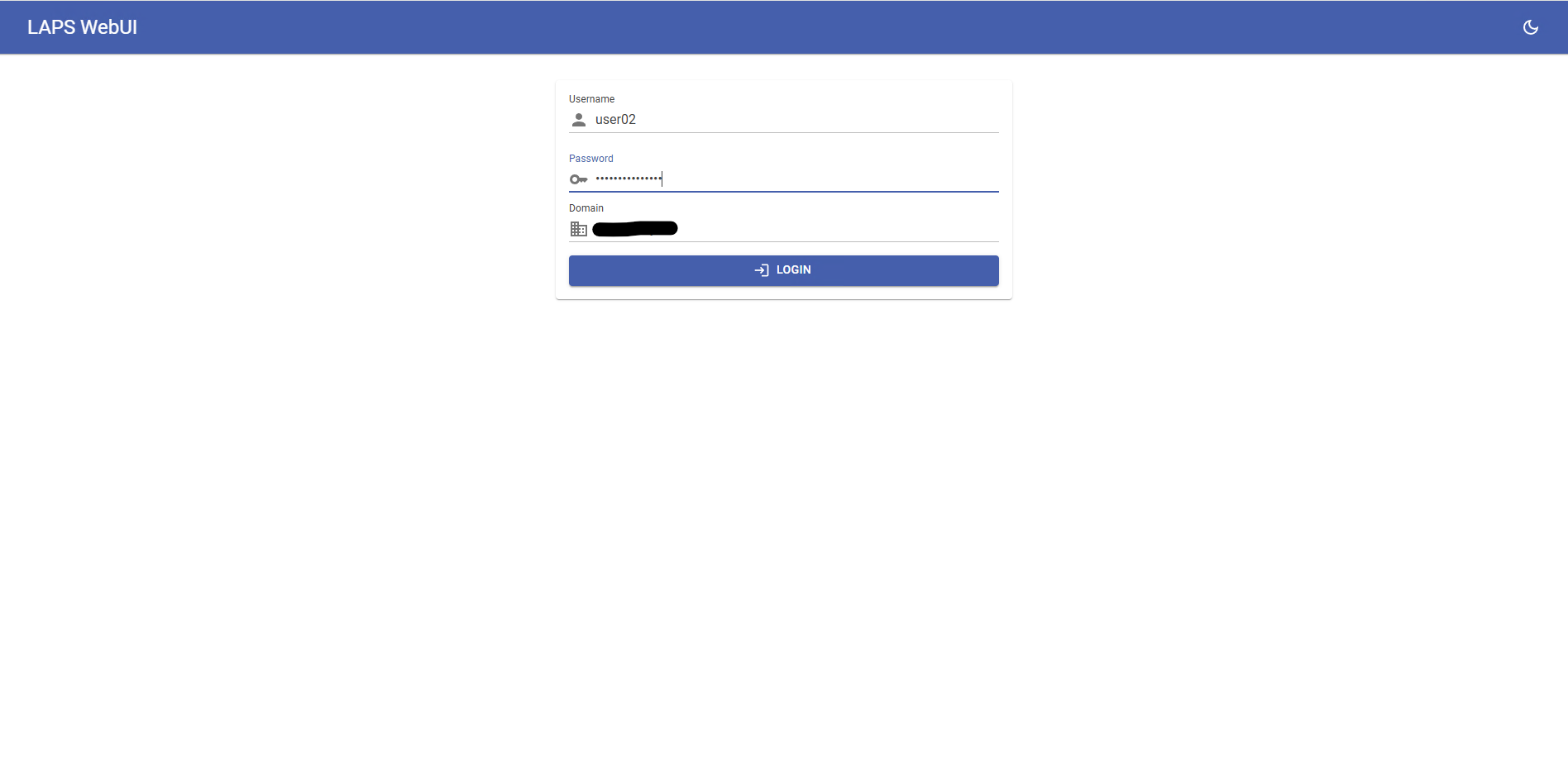
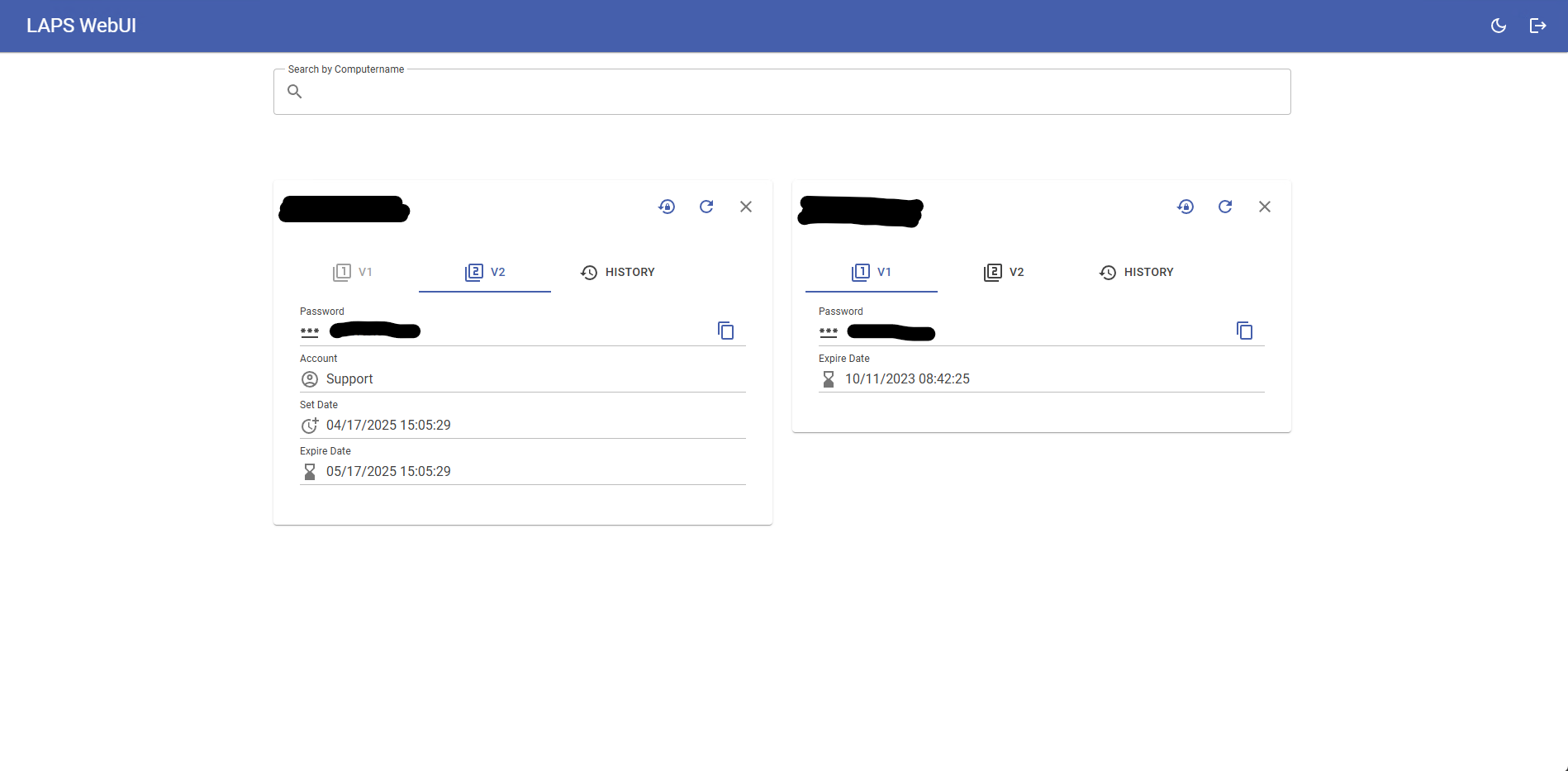
A modern web interface for Microsoft LAPS — view and manage local administrator passwords across your Active Directory domains.
Full support for both legacy LAPS v1 and modern LAPS v2, including encrypted password decryption via Kerberos and DCE-RPC.
Connect to multiple Active Directory domains from a single instance. Switch between domains seamlessly.
No separate user management needed — access is fully controlled by Active Directory permissions. Authenticate directly against your domain controllers.
One-line Docker deployment with full environment variable configuration. Bare-metal deployment also supported.
View historical LAPS passwords for LAPS v2, with account names and timestamps. Track password rotation events.
Built-in dark/light theme toggle. MudBlazor-powered Material Design components for a clean, modern interface.
Running LAPS-WebUI in Docker is straightforward. Replace the example values with your own environment:
docker run -d \
  --name=lapswebui \
  -e Domains__0__Name=example.com \
  -e Domains__0__Ldap__Server=ldap.example.com \
  -e Domains__0__Ldap__Port=636 \
  -e Domains__0__Ldap__UseSSL=true \
  -e Domains__0__Ldap__TrustAllCertificates=true \
  -e Domains__0__Ldap__SearchBase='DC=example,DC=com' \
  -p 8080:8080 \
  --restart unless-stopped \
  ghcr.io/seji64/laps-webui:latest
Access the app at http://localhost:8080.
dpapi-ng[kerberos] (for LAPS v2 encrypted password decryption)Configure your domains via appsettings.json or environment variables. Here's an example configuration:
{
  "Domains": [
    {
      "Name": "example.com",
      "Ldap": {
        "Server": "ldap.example.com",
        "Port": 636,
        "UseSSL": true,
        "TrustAllCertificates": true,
        "SearchBase": "OU=Clients,DC=example,DC=com"
      },
      "Laps": {
        "ForceVersion": "All",
        "EncryptionDisabled": false
      }
    }
  ]
}
See appsettings.json.example for the complete reference.
Both are configured in appsettings.json or via environment variables (e.g. Session__IdleTimeoutMinutes, LoginRateLimit__Enabled). Login rate limiting is off by default:
{
  "Session": {
    "IdleTimeoutMinutes": 60,
    "LifetimeMinutes": 480
  },
  "LoginRateLimit": {
    "Enabled": true,
    "MaxFailedAttempts": 10,
    "WindowMinutes": 15
  }
}
Behind a reverse proxy, set ASPNETCORE_FORWARDEDHEADERS_ENABLED=true so the app sees the real client IP. Otherwise all users share the proxy's IP and therefore one limit.